DashHarbor Features
EmDash Site History
Coming soon
Your website has a history. You should be able to read it.
Websites change. Content gets published, software gets updated, domains get connected and sometimes something breaks. DashHarbor Site History brings important activity together in a readable timeline, so you can understand what happened, when it happened and who or what was responsible.
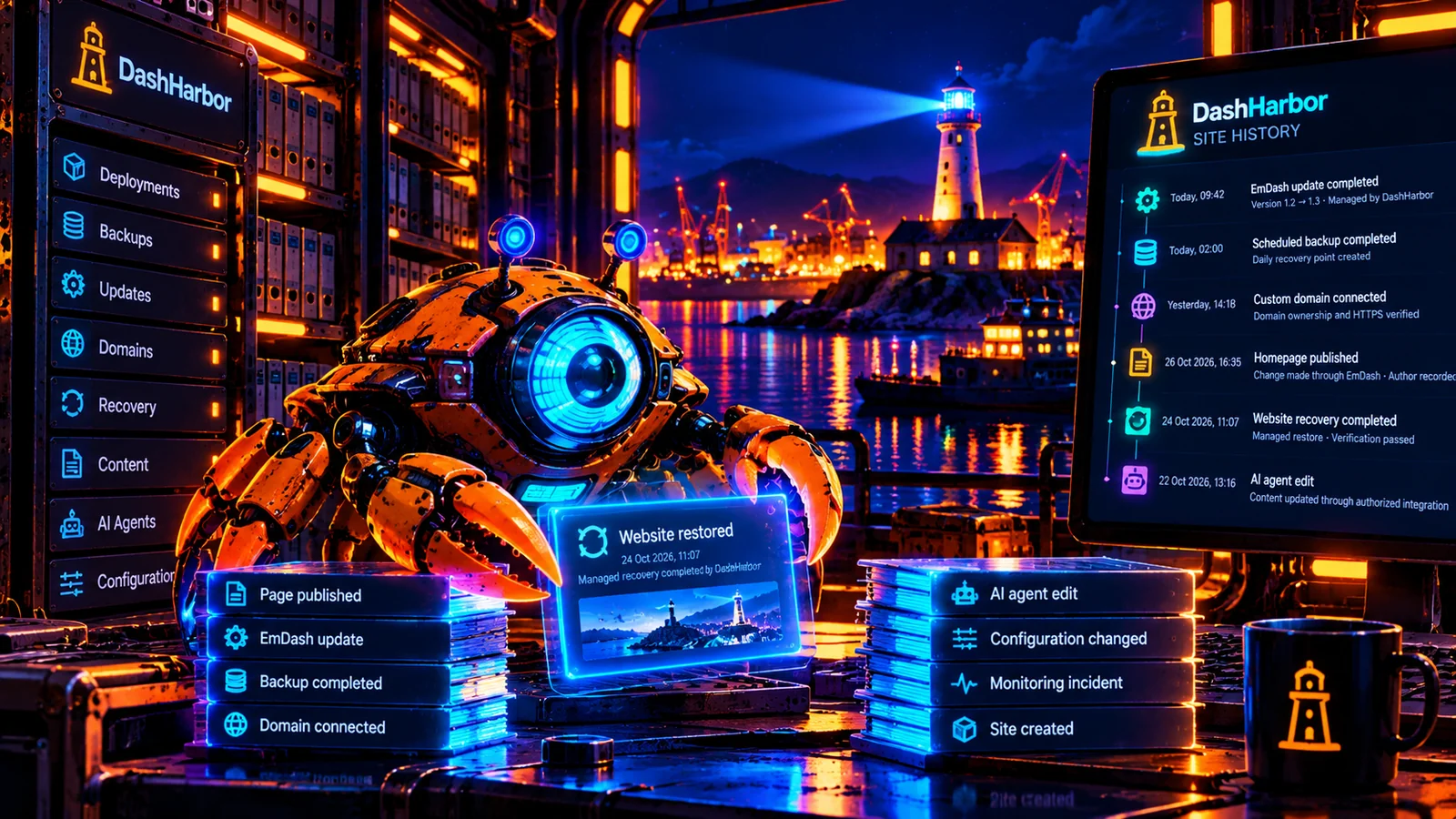
Websites change. Sometimes it's useful to know why.
Imagine opening your website one morning and discovering that something is different.
Your homepage has changed. A plugin behaves strangely. A domain setting has been updated. Perhaps the site was restored overnight and you weren't aware of it.
You start asking questions.
Who changed it? When did it happen? Was it an editor, a software update or an automated process? Can we find out what the website looked like before?
Without a useful history, answering those questions can involve searching application logs, checking database records, comparing deployments and reconstructing events from several different systems.
That's an unreasonable amount of detective work for someone who just wanted to run a website.
DashHarbor Site History is designed to make important website activity understandable.
Instead of presenting customers with raw technical logs, it brings relevant managed operations together in a chronological timeline.
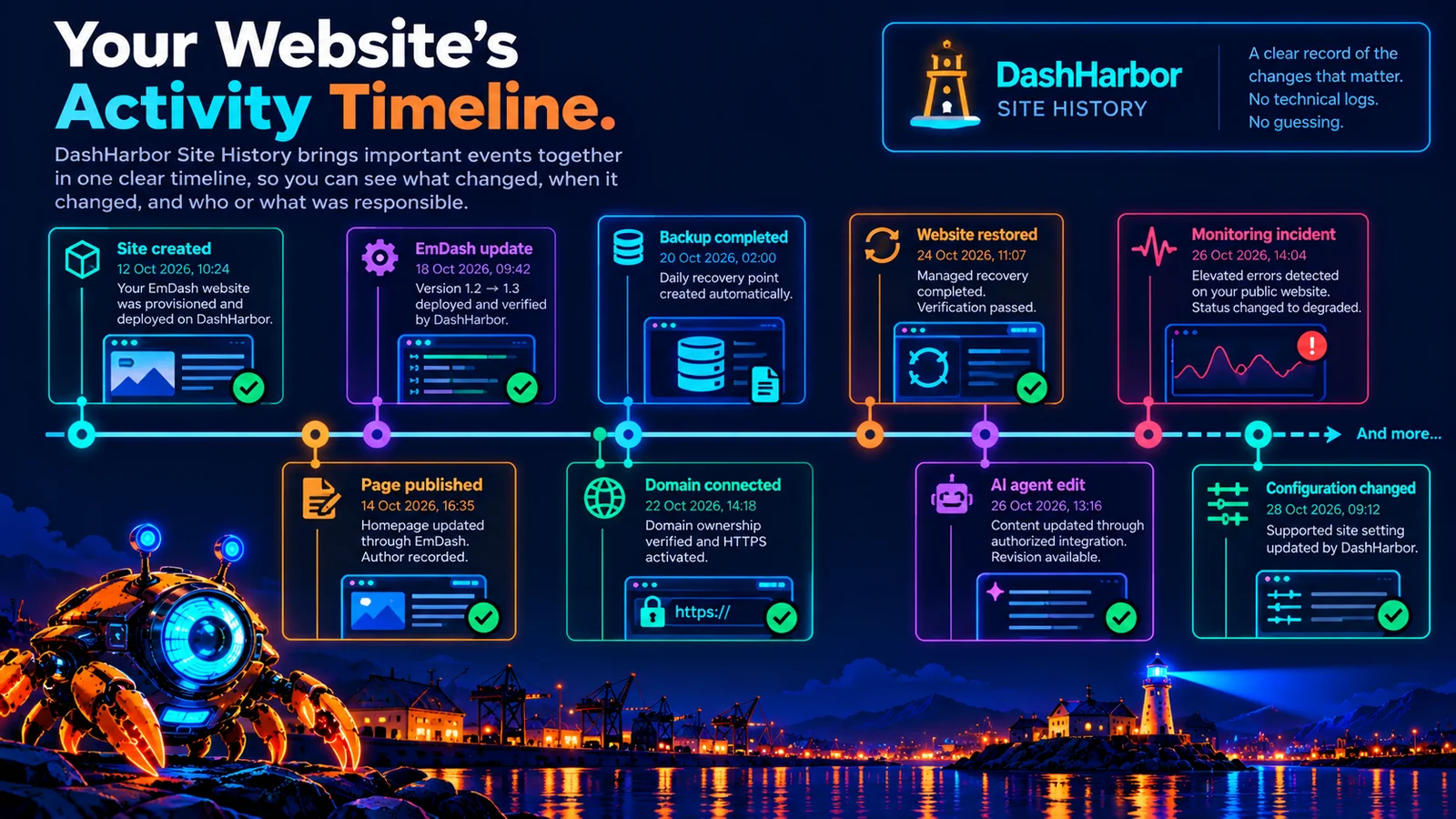
A software update completed. A backup was created. A domain was connected. A recovery operation restored an earlier state. An authorized user published content.
Each event tells you what happened and provides the context needed to understand it.
The underlying DashHarbor platform already records information about important managed operations. The paid Site History feature extends that foundation into a customer-readable experience, with event filtering, activity details and links to related operations.
The objective is simple: when your website changes, you shouldn't have to guess why.
What is EmDash Site History?
Site History is a record of significant events affecting a website over time.
Think of it as an activity timeline for your hosted EmDash installation.
A typical website has several different kinds of history.
The content management system may record previous versions of pages and posts. The hosting platform records deployments and infrastructure operations. Backup systems record recovery points. Domain-management processes record configuration changes.
These records are useful individually, but they don't necessarily tell a coherent story when viewed separately.
DashHarbor Site History is intended to connect those events into one understandable account.
For example, you might see that:
- An EmDash update was approved and deployed.
- A recovery point was created before the update.
- The deployment passed its verification checks.
- An editor subsequently published a new page.
- A domain configuration change was completed.
- A scheduled backup ran successfully.
Rather than exposing several different technical systems, Site History presents relevant events using ordinary language, timestamps, recognizable categories and clear outcomes.
It's an operational record of the website, not a second content editor.
And unlike a traditional server log, it shouldn't require a background in systems engineering to understand.
What kinds of website activity should be recorded?
Not every technical event deserves a place in the customer's activity timeline.
A website might process thousands of requests a day. Recording every request as a customer-visible event would be a spectacular way to make the history useless.
Site History should concentrate on meaningful actions and changes.
Activity category | Examples of recorded events | Why it matters |
|---|---|---|
Website creation | Site provisioned, initial deployment completed, website activated. | Establishes when the site was created and became available. |
Content activity | Page published, content restored, relevant editing event recorded. | Helps connect editorial changes to site activity. |
EmDash updates | Update reviewed, deployed, completed, failed or rolled back. | Explains software changes affecting the website. |
Backups | Recovery point created, backup completed or backup failed. | Shows when website protection operations occurred. |
Recovery | Restore requested, approved, started, completed or failed. | Provides a record of potentially significant changes to the site. |
Domains and HTTPS | Domain connected, ownership verified, certificate activated, routing changed. | Explains changes to how visitors reach the website. |
Configuration | Relevant hosting setting or managed configuration changed. | Helps identify operational changes that may affect behavior. |
AI and automation | Authorized agent operation, scheduled task or automated website change. | Identifies changes initiated through automated workflows. |
These categories describe the intended paid Site History coverage. Individual event types depend on the functionality implemented and the availability of reliable source records.
The important principle is that events should describe something useful.
“Deployment completed” is meaningful.
“Internal handler executed successfully with status 200” is probably not what most website owners were hoping to read over breakfast.
What should a website history entry tell you?
An activity timeline is only useful if its entries contain enough information to explain what happened.
A timestamp and a vague description aren't always sufficient.
Consider an entry that simply says: Website updated.
Updated how? Which version? Who initiated it? Did it work? Was the site tested afterward?
A better record might say:
EmDash update completed
Version changed from the previous approved release to a newer compatible release. The update was performed through DashHarbor's managed deployment process, and post-deployment checks passed.
That's more useful.
A well-designed Site History event should contain relevant details such as:
- Event: What action or change occurred.
- Time: When the event happened, with a consistent timestamp.
- Website: Which hosted site was affected.
- Source: Whether the event came from EmDash, DashHarbor, an operator or an automation.
- Actor: The user, service or agent responsible, when reliably recorded.
- Outcome: Whether the action succeeded, failed or is still in progress.
- Affected resource: The page, deployment, domain or other component involved.
- Related operations: Links to relevant backups, recovery requests, revisions or deployment records.
Not every event needs every field.
A completed backup, for example, may not involve a human user at all. Its source might be an automated scheduling system.
An unsuccessful deployment might need a clear failure status and an operational reference rather than a long technical error message.
The customer-facing timeline should show the useful information first, with additional details available when needed.
Content revisions and Site History aren't the same thing
This distinction matters because EmDash already has its own content revision system.
EmDash supports revision history for compatible content collections, allowing editors to inspect earlier versions and restore previous content.
EmDash 1.3 improved that experience substantially. Its revision interface can identify who saved a version, highlight changes within the content and explain differences in readable language.
That's exactly the sort of functionality a modern CMS should provide.
DashHarbor doesn't need to build a competing editor.
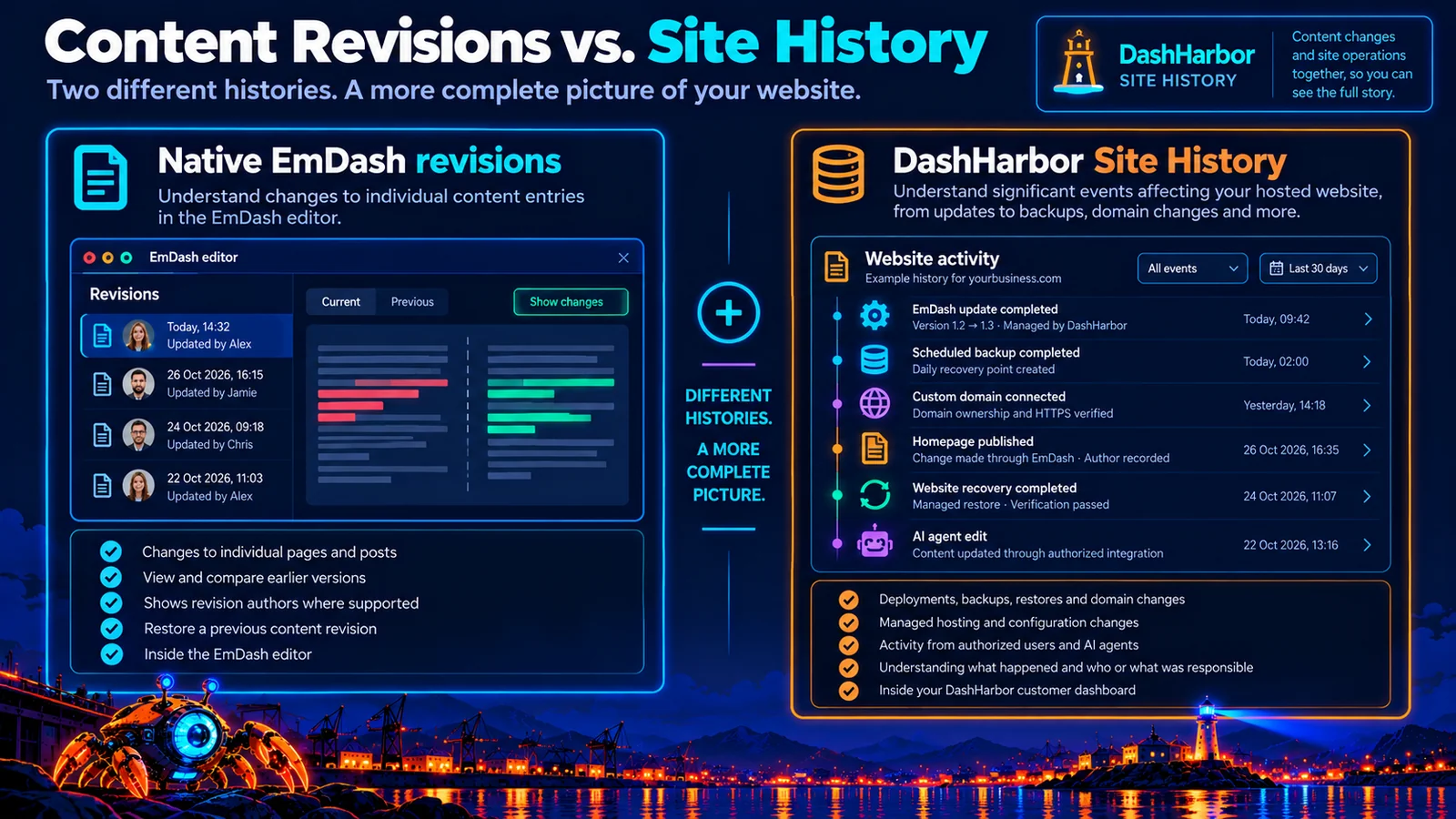
Native EmDash revisions explain how an individual piece of content changed. DashHarbor Site History explains what happened across the managed website.
Capability | Native EmDash revisions | DashHarbor Site History |
|---|---|---|
Main purpose | Understand changes to individual content entries. | Understand significant events affecting the hosted website. |
Typical events | Saved revisions, editorial changes and content restoration. | Deployments, backups, restores, domain changes and managed operations. |
Author information | Shows recorded revision authors where supported. | Shows the responsible user, operator or automation where recorded. |
Viewing changes | Compare content versions and inspect editorial differences. | Review event details and related operational records. |
Restoration | Restore an earlier supported content revision into the editing workflow. | Link to appropriate managed recovery operations and their outcomes. |
Where you use it | Native EmDash editor. | DashHarbor customer dashboard. |
The two systems should complement one another.
Imagine an article suddenly contains incorrect information.
You could open the article in EmDash, review its revisions and see what changed.
If you also wanted to know whether the problem occurred around a managed deployment or an automated operation, the DashHarbor timeline could provide additional context.
That is much more useful than building two separate systems that both attempt to do the same job.
Read the official EmDash guide to content revisions.
A timeline that connects your website's moving parts
One of the advantages of managed hosting is that the hosting provider understands more about the operational environment than a generic third-party monitoring service.
DashHarbor manages the supported website lifecycle on Cloudflare.
That includes provisioning, deployment, configuration, protected operations and recovery.
Site History can use the records produced by those processes to build a more coherent picture of the website.
For example, a managed update might generate several related events:
Update approved: A compatible EmDash release has passed the required review.
Recovery point prepared: The existing site has been protected where the update requires a recovery checkpoint.
Deployment started: The approved application version is being activated.
Update verified: The public website and relevant editor functions have passed the necessary checks.
Instead of treating these as four unrelated records, Site History should be able to connect them as part of one managed operation.
That allows customers to understand both what happened and how it concluded.
The same principle applies to website recovery, domain connections and future automated maintenance.
This is where Site History becomes more useful than a list of timestamps.
It gives operational activity some context.
Who changed my website?
This is probably one of the first questions customers will ask.
And it's a reasonable one.
A website may have several authorized editors. DashHarbor operators may perform managed maintenance. Background tasks can execute automatically. Plugins and connected AI agents may carry out actions through approved interfaces.
Site History should make those sources distinguishable.
A customer should be able to understand whether an event was initiated by:
An authorized website user: For example, an editor publishing an article or changing supported site settings.
A DashHarbor managed operation: For example, a reviewed EmDash update or controlled recovery operation performed through the hosting service.
An automated platform process: For example, a scheduled backup or a routine operational check.
An authorized integration or AI agent: For example, an external tool publishing a page or changing content through an authenticated EmDash interface.
There is one important rule.
Attribution needs evidence.
If an operation was performed using a shared service credential, the system may know which integration made the request without knowing which individual instructed it.
In that case, the history should identify the integration rather than inventing a person's name.
“Who changed this?” deserves an accurate answer.
Even if that answer is occasionally “we know which service performed the action, but not the individual who requested it.”
Tracking AI agents and automated website changes
EmDash is particularly interesting because its content management capabilities are accessible through structured APIs and Model Context Protocol (MCP) tools.
That allows authorized AI agents and other software to interact with supported CMS functionality.
An agent might create a draft, update a page, change metadata or perform another permitted operation.
Those capabilities can be useful.
They also make activity history more important.
When an automated tool changes a website, customers should be able to understand what occurred.
DashHarbor's intended Site History coverage includes activity from authorized agents and integrations where reliable event information is available.
Useful records could include:
- The agent or integration responsible for the operation.
- The website and resource affected.
- The type of action requested.
- Whether the action succeeded or failed.
- The identity of the authorizing user, where that information is recorded.
- Links to relevant content revisions or operational records.
For example, a timeline might show:
Homepage updated through an authorized AI integration. The operation modified a supported content entry. The resulting revision is available in the native EmDash editor.
That's useful information.
But Site History should not pretend to know everything an agent was thinking, why it selected particular wording or which person authorized an action unless the integration actually supplies that information.
The distinction between the person requesting an action and the software executing it is especially important.
An agent can perform an operation on someone's behalf. The two identities shouldn't automatically be treated as interchangeable.
As DashHarbor's AI capabilities evolve, consistent activity records will help make automated website management more understandable and accountable.
Can Site History help identify what caused a problem?
Yes, provided the relevant events were recorded.
Imagine that a website starts displaying errors shortly after a configuration change.
A site-wide history could show that the configuration changed at 14:05 and the monitoring system detected failures at 14:07.
That doesn't prove the configuration change caused the errors.
But it provides a useful starting point for investigation.
The same applies to software updates.
Suppose an EmDash upgrade completes, then the editor begins behaving unexpectedly.
An activity timeline could help an operator identify the deployment version, check the update receipt and investigate whether the failure is related.
This is why Site History should connect with DashHarbor's EmDash Monitoring and EmDash Recovery features.
Monitoring identifies problems.
Site History provides context about recent activity.
Recovery supplies the controlled procedures needed to return an affected website to a working state.
The combination can make troubleshooting considerably less painful.
A timeline won't solve every problem.
But knowing what happened immediately before something broke is usually more helpful than guessing.
How Site History connects with Backups and Recovery
Backups and recovery operations can have significant effects on a website.
That makes them particularly important events to record.
Consider a managed restoration.
An earlier recovery point is selected. The current state is reviewed and protected where supported. The restoration is performed. The public website and editor are tested afterward.
Those steps should generate useful operational evidence.
Site History is intended to make the relevant information accessible to the customer.
For example:
Recovery requested: A restoration was requested for the affected website.
Recovery approved: The proposed recovery point and restoration scope were reviewed.
Restoration completed: The selected components were restored through the managed recovery procedure.
Verification passed: The required website and editor checks completed successfully.
Where appropriate, these events can link to the associated recovery operation or protected recovery point.
That gives customers a better understanding of what happened during an incident without exposing private infrastructure controls.
For more about the actual protection and restoration mechanisms, see EmDash Backups and EmDash Recovery.
Filtering activity without becoming a database administrator
A useful history becomes harder to navigate as a website gets older.
After a few months, even a relatively small site might have hundreds of relevant events.
Nobody wants to scroll through six months of successful backup messages to find out when their domain was changed.
Practical filters help you find the change you need without scrolling through every event.
Customers should be able to narrow events by date, category, outcome and relevant source.
For example, you might want to:
- Show only updates and deployment changes.
- Find recovery operations from the last month.
- Review activity associated with a particular domain.
- Identify unsuccessful managed operations.
- See changes associated with an authorized integration.
- Find the latest backup-related events.
The interface should also make it easy to open a particular event and inspect its additional details.
A timeline is useful when it helps answer questions quickly.
If using it requires remembering obscure event identifiers or writing database queries, something has gone wrong with the design.
What about failed and unfinished operations?
History should record more than successful actions.
Failed operations are often the ones customers most need to understand.
For example, a website update might begin but fail its verification checks.
A useful timeline shouldn't simply omit the attempt because it wasn't completed.
Instead, the related activity should show what happened.
An event might be marked:
- Started
- In progress
- Completed
- Failed
- Canceled
- Superseded by a later operation
The available states should reflect the underlying system rather than inventing outcomes.
An operation that failed during deployment might have left the previous website version running normally.
That's different from a failed deployment that caused an incident and required recovery.
Site History should preserve those distinctions.
Likewise, if the outcome of an operation cannot be confirmed, the timeline should not quietly label it successful.
A clear unknown or unresolved state is more trustworthy than manufactured certainty.
Where does DashHarbor get its history information?
DashHarbor operates its managed EmDash hosting platform using Cloudflare services, including Workers, D1 and R2.
The platform already produces operational records associated with activities such as provisioning, deployments and managed changes.
Those records provide a foundation for customer-facing Site History.
However, different systems capture different information.
A deployment record may identify an application version and deployment outcome.
A backup record may identify a recovery point and its status.
An EmDash content revision may identify who saved a particular content version.
Application logs may help explain an error without representing a deliberate website change.
Building a useful Site History feature means normalizing the appropriate information into consistent customer-facing events.
Those events should include reliable identifiers, timestamps, sources and outcomes.
Events from the same operation should be linked where possible.
And operational information should be separated from customer-readable descriptions so that the dashboard remains understandable.
Cloudflare Workers Logs can help with diagnosing application activity, but ordinary application logs are not automatically a complete, authoritative audit trail of website changes.
DashHarbor needs its own event-handling rules to determine which operations should appear in Site History and what information can safely be displayed.
That is an important part of implementing the paid feature correctly.
Can customers trust the timestamps and event order?
A history is only as useful as the accuracy of its records.
Timestamps matter, especially when several systems are involved.
Imagine a deployment starting at 14:00, a database migration completing at 14:02 and an application error appearing shortly afterward.
Those events need to be presented in a consistent order.
Site History stores consistent event timestamps and shows them in a readable time zone, so events stay in the right order.
It should also distinguish when an event actually occurred from when DashHarbor received or recorded it.
Those times may differ.
An asynchronous process might complete an operation before its result reaches the customer timeline.
An external integration might also report an event after a delay.
That doesn't necessarily mean the history is wrong, but the system needs a sensible way to handle late or out-of-order information.
Where the available information is incomplete, the interface should avoid suggesting a level of precision it doesn't have.
Can someone delete or rewrite site history?
This deserves careful consideration.
A trustworthy activity history should not be something that any ordinary website editor can casually rewrite.
Otherwise, the feature loses much of its value.
Imagine an important configuration change causing a failure, followed by someone deleting the record that the change ever happened.
Not ideal.
DashHarbor's paid Site History implementation should protect the integrity of operational records, using controlled permissions and appropriate safeguards against unauthorized alteration.
Where corrections are necessary, the system should preserve a reliable explanation rather than silently replacing the original event.
That doesn't mean every event needs to be retained forever.
Retention limits, privacy obligations and operational costs still matter.
But while records are retained, their integrity should be treated seriously.
The customer-facing dashboard should also be read-only for historical operational facts.
Viewing a recovery record should not automatically grant permission to restore the website.
And viewing a deployment event should not create a convenient shortcut for redeploying arbitrary application code.
History is for understanding what happened.
Operational controls are a separate responsibility.
Keeping customer activity private
A multi-customer hosting platform needs to handle activity history carefully.
Site History may include usernames, operation details, domain names, resource identifiers and other information related to a customer's website.
Some underlying operational records may also contain diagnostic details that should never appear in a public-facing dashboard.
DashHarbor's implementation needs to enforce customer and website access permissions.
A customer should only see the events they are authorized to view.
An editor with limited access should not automatically receive unrestricted access to account-level operational information.
The system must also avoid exposing credentials, authentication tokens, secret environment variables or other sensitive infrastructure data.
Where necessary, the customer-facing event should contain a safe summary and a reference to an internally protected operational record.
That's usually a better approach than copying raw logs into a dashboard and hoping nobody notices what's inside them.
How long should Site History be kept?
Not every website needs the same amount of historical detail.
Recent activity is often useful for troubleshooting and understanding normal operations.
Older records may be valuable for investigating changes made weeks or months earlier.
But unlimited retention introduces additional storage, privacy and management considerations.
DashHarbor's paid Site History feature should use defined retention policies appropriate to the type of event and the service being provided.
For example, important managed recovery or deployment records may warrant different retention treatment from routine informational events.
Customers should also understand the historical period their dashboard covers.
An activity timeline should not suggest it contains the website's complete lifetime history if older events were never captured or have passed their retention period.
The exact retention policy needs to be established and verified as part of the paid implementation.
Until then, the sensible promise is a useful, appropriately retained history—not an eternal archive of everything that has ever happened.
Can Site History replace backups or monitoring?
No. And it shouldn't try.
Site History records events.
Backups preserve recoverable website states.
Monitoring checks whether the website is functioning correctly.
Recovery provides a controlled way to restore affected components.
These capabilities complement one another.
A timeline might show that an automated backup completed successfully, but the event record is not the backup itself.
It might show that a website became unavailable, but recording that incident doesn't repair the website.
It might identify when a destructive change occurred, but knowing the timestamp doesn't guarantee the affected data can be restored.
The value comes from connecting those systems.
If something breaks, you can use monitoring to identify the problem, Site History to understand relevant activity and available recovery procedures to address it.
That creates a more coherent managed-hosting experience than treating every feature as an isolated tool.
Why Site History matters for small businesses
Most business owners don't think about operational audit trails until something changes unexpectedly.
That's understandable.
If your website is working, you probably have more important things to do than inspect deployment records.
But websites are increasingly managed by combinations of people, software and automated services.
An owner might publish pages. An editor might update the blog. DashHarbor might deploy a managed EmDash release. An integration might update content through an API. A background process might prepare a backup. A support operation might restore a previous working state.
The more activity taking place, the more useful it becomes to have a common record.
Site History gives customers a way to understand their website's operational life without requiring them to manage the underlying infrastructure.
It's useful when something goes wrong.
It's also useful when everything goes right.
Seeing that a protected update completed successfully, the editor was verified and the expected backup operations ran can provide a much clearer understanding of what managed hosting is actually doing.
Instead of paying for an invisible collection of technical services, customers get a readable account of meaningful activity.
Managed hosting should do the work. Site History should help explain it.
Frequently asked questions
What is EmDash Site History?
DashHarbor Site History brings important website events into a readable timeline: managed updates, backups, recovery, domain changes, selected content activity and authorized automation. You can see what happened without interpreting technical logs.
Is Site History the same as EmDash content revision history?
No. EmDash already supports revision history for compatible content collections, including the ability to inspect earlier versions and restore content. DashHarbor Site History covers broader website activity, such as hosting operations, software updates, recovery events and domain changes. Where supported, the two systems can link to one another.
Can I see who made a change to my website?
Site History is designed to display the responsible user, operator, service or integration when that information is reliably recorded. Some automated operations may only identify a service rather than an individual person. The timeline should clearly distinguish known attribution from missing or incomplete information rather than guessing.
Will Site History include changes made by AI agents?
Authorized AI and automation activity is part of the intended Site History coverage. Where an integration provides reliable event information, the timeline can identify the tool involved, the affected resource and the operation's outcome. The precise level of attribution depends on the integration and the information recorded when the action occurs.
Can I use Site History to restore an earlier website version?
Site History itself is an activity record, not a backup or unrestricted restoration tool. Where supported, events can link to native EmDash content revisions, protected recovery points or managed recovery operations. Whether an earlier state can be restored depends on the available history, compatible recovery mechanisms and appropriate permissions.
Is EmDash Site History included in the free DashHarbor plan?
The customer-facing Site History timeline is coming soon with paid hosting. Operational records already help DashHarbor manage the service; your free website includes native editing and publishing on a DashHarbor subdomain.
Know what happened to your website
Your website is going to change.
That's the whole point of having one.
You'll publish new content, improve pages, connect services and benefit from EmDash updates. DashHarbor will carry out managed hosting operations behind the scenes.
And as AI tools and automation become more capable, more changes may happen without somebody manually opening the editor for every action.
Those changes shouldn't disappear into a collection of obscure technical records.
DashHarbor Site History is designed to bring meaningful website activity together, with clear timestamps, useful explanations and links to the operations that matter.
So when someone asks what happened to the website last Tuesday, you can give them a better answer than “I have absolutely no idea.”
Your website has a history. DashHarbor helps you understand it.
Paid subscriptions aren't open yet. Start building for free on your DashHarbor subdomain.
Start with a real EmDash site
Create your website on DashHarbor, choose a supported design and publish with the native EmDash editor. Managed hosting is included, with expanded Site History forming part of the paid hosting offering.
Explore related features
- EmDash Backups — Preserve recoverable website states through managed backup protection.
- EmDash Recovery — Return your website to a compatible earlier state when something goes wrong.
- EmDash Updates — Maintain EmDash through controlled releases and verified deployments.
- EmDash Monitoring — Detect website problems and track important incidents.