DashHarbor Features
EmDash MCP & API
Connect your tools. Keep control of your website.
Available
Your website already has an editor. But sometimes you want to work with content from somewhere else: an AI assistant, a development tool or a program you've written yourself. EmDash includes native MCP, API and command-line interfaces for exactly that. DashHarbor manages the hosting around your site; connected tools still need the right authentication and permissions.
Your website doesn't have to be an island
Imagine you're writing a blog post with an AI assistant.
You spend half an hour researching the subject, organizing the sections and improving the copy.
Now you've got to move everything into your website.
Copy the text. Open the editor. Paste it. Fix the formatting. Add the images. Enter the metadata. Save a draft. Check it again.
It's not the worst job in the world.
But it does feel like something a computer ought to be able to help with.
EmDash was built with interfaces that allow authorized software to work directly with your website's content.
Instead of forcing every task through a browser-based editor, EmDash provides ways for AI assistants, development tools and other applications to access supported CMS operations.
An AI assistant can draft an article and create it directly in EmDash. Developers can connect custom applications through the content API, while command-line users can manage supported content operations without opening the admin dashboard.
These interfaces aren't experimental ideas invented by DashHarbor.
They're native EmDash capabilities.
Our job is to make them usable within a managed hosting environment without compromising the authentication, permissions and operational protections that keep customer websites separate and secure.
Which brings us to three slightly intimidating acronyms.
Don't worry. Only one of them is actually new.
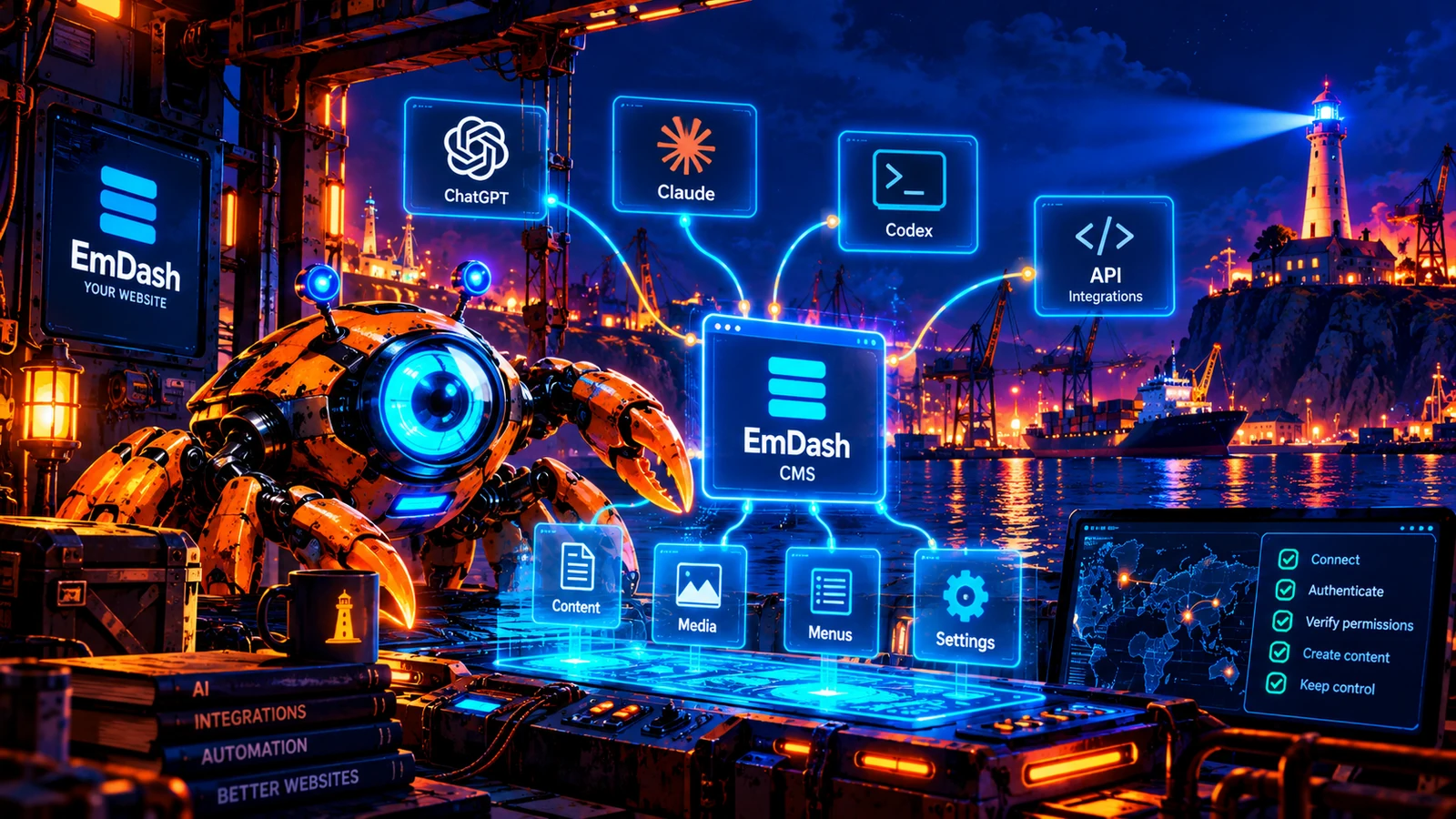
What is MCP, and why does EmDash support it?
MCP stands for Model Context Protocol.
It's an open protocol that allows compatible AI applications to discover and use tools exposed by other software.
Think of it as a way for an AI assistant to interact with a website through clearly defined operations rather than pretending to be a human clicking buttons.
An EmDash MCP connection can expose tools for tasks such as finding content, creating drafts, updating supported entries, managing media and inspecting content structures.
Instead of telling your AI assistant:
"Write an article, and I'll copy it into my website afterward."
You could tell it:
"Create a draft blog post about preparing a small business website for winter. Include a title, summary and suggested SEO description. Don't publish it."
The assistant can use the appropriate EmDash tools, subject to the permissions you've granted it.
The result is a draft in the actual CMS, ready for review.
That distinction matters.
You're not asking an AI to manipulate an imaginary website. You're connecting it to the real content system through a documented interface.
And because the operations are structured, the CMS can validate requests and enforce permissions.
Of course, that doesn't mean an AI assistant automatically knows what makes good website content.
It still needs sensible instructions, a useful brief and somebody willing to read what it produces.
The API doesn't cure terrible writing.
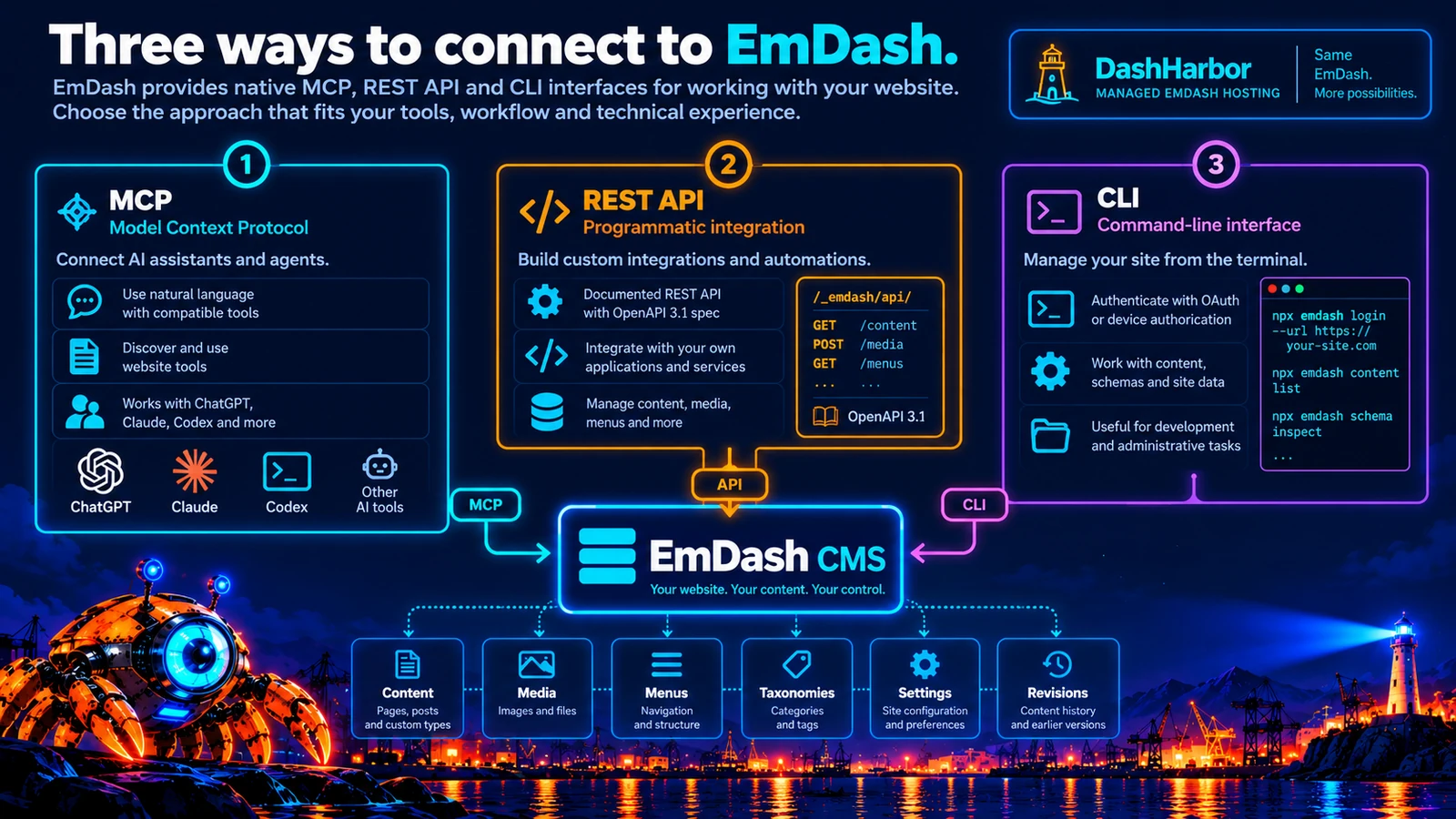
Three ways to work with EmDash
EmDash provides three main interfaces that serve different purposes.
Interface | Best suited to | Example |
|---|---|---|
MCP — Model Context Protocol | Compatible AI assistants and agent workflows. | Ask an assistant to find an article, update its draft and prepare it for review. |
REST API | Developers, integrations and custom applications. | Connect an internal business tool that creates or updates supported CMS content. |
CLI — Command-Line Interface | Developers, administrators and terminal-based workflows. | Authenticate with an EmDash installation, inspect content or perform supported site operations. |
These interfaces often interact with the same underlying CMS.
The difference is how you use them.
MCP is particularly useful when an AI assistant needs to discover available operations and select the right one.
REST is useful when software needs predictable, explicitly programmed requests.
The CLI is convenient when you're working from a terminal.
None of the three replaces the normal EmDash editor.
If you prefer opening a page, making a few changes and pressing Publish, that's still a perfectly reasonable way to run a website.
The additional interfaces simply give you more options.
What can an AI assistant actually do with EmDash?
Quite a lot, depending on the EmDash version, available tools and permissions.
The built-in MCP server supports operations across several parts of the CMS.
Create and edit content
An authorized assistant can work with supported content collections.
For example, it can search for an article, inspect its fields, create a draft or update an existing entry.
This is useful when you've already done the research or have content prepared elsewhere.
Rather than manually transferring the work, you can ask the assistant to put it in the appropriate collection and complete supported metadata fields.
You can also keep the assistant away from publishing permissions if all you want it to do is prepare drafts.
Find and organize existing content
Suppose your blog contains 150 articles.
You want to identify posts about customer service that haven't been updated recently.
An assistant with suitable read access can search the CMS and help you work through the relevant records.
It might produce a suggested update list, identify related content or recommend internal links.
The usefulness of its recommendations still depends on the quality of the underlying data and the assistant's reasoning.
But at least it can work with the actual articles instead of asking you to paste 150 pages into a conversation.
Work with images and media
EmDash includes media-management tools.
With appropriate permissions, an assistant can inspect media records and perform supported operations such as uploading or updating media.
That can help with organizing illustrations, setting descriptive metadata or attaching prepared assets to content.
An AI-generated image is not automatically a suitable website illustration, though.
Someone still needs to check that it represents the subject accurately.
Especially when the image contains text. Computers remain remarkably inventive when spelling words they ought to know.
Manage navigation and content structures
Higher-privilege tools can work with menus, taxonomies, bylines and other supported website structures.
Administrative capabilities may include inspecting or changing collection schemas.
These are more consequential operations.
Creating a draft article and modifying the database-backed content model are not equivalent risks.
EmDash applies different permissions to those operations, and schema changes require administrator-level authority.
Review content revisions
EmDash also exposes supported revision-history operations.
An authorized assistant can inspect earlier content revisions and work with the CMS's revision mechanisms.
That can be useful when an article has been changed unexpectedly or when you want to compare an earlier version.
Content revisions are not the same as a complete website backup, however.
For broader protection, see EmDash Backups and EmDash Recovery.
A practical example: creating a blog post with AI
Let's turn this into something useful.
Imagine you run a small landscaping business.
You want to publish an article about preparing gardens for winter.
You've already decided on the subject, and you want an AI assistant to help with the initial draft.
A sensible workflow might look like this.
1. Connect an authorized assistant
The assistant needs a supported MCP connection to the EmDash installation, with suitable authentication and permissions.
On a standard EmDash installation, the site MCP endpoint follows this pattern:
https://example.com/_emdash/api/mcp
Your actual domain replaces example.com.
On DashHarbor, use the clients and connection methods supported for your website.
2. Ask it to inspect the content collection
Before creating anything, the assistant should establish which collection contains blog posts and which fields that collection supports.
An EmDash website doesn't necessarily use the same content structure as another installation.
That makes checking the schema considerably more reliable than guessing.
3. Give it a useful brief
For example:
"Create a draft blog post about five ways homeowners can prepare their gardens for winter. Write for beginners, use American English, include practical advice and suggest a meta description. Save it as a draft. Do not publish."
The assistant can prepare the content and use the available EmDash operations to create the entry.
4. Review the result
Open the draft in the native EmDash editor.
Check the facts, headings, formatting, links and suggested metadata.
Make changes where necessary.
If the assistant claims that every rose bush should be wrapped in aluminum foil, you probably want to catch that before the article goes live.
5. Publish when you're satisfied
Publish the approved article through the normal editor, or through an authorized operation where appropriate.
The important thing is that drafting and publishing remain separate decisions.
This is a useful pattern for AI-assisted website management: let automation handle repetitive work while keeping meaningful editorial control.
Connecting Claude, ChatGPT and Codex
EmDash documents connections for several compatible AI clients, including Claude, ChatGPT and Codex.
These applications have different setup procedures, account requirements and capabilities.
But the underlying idea is similar.
The client needs the address of the site's MCP server and a way to authenticate with it.
On a compatible standard EmDash installation, the connection URL is:
https://your-domain.com/_emdash/api/mcp
Claude
Claude supports remote MCP connections through its connector functionality.
Where the client and EmDash authentication configuration are compatible, the user connects the remote server, signs in and authorizes the requested access.
The exact screens and availability depend on the client's current product and plan.
ChatGPT
EmDash documents connecting its site MCP server using ChatGPT's supported remote MCP capabilities, including developer-mode configurations where eligible.
A user can authorize an appropriate connection and allow compatible tools to interact with supported EmDash resources.
This is not the same as ChatGPT automatically having access to every website you own.
The connection must be configured, authorized and supported by the relevant ChatGPT environment.
Codex
Codex is particularly interesting for developers already working with website source code.
The official EmDash guide describes registering a remote MCP server and authenticating it through the Codex CLI.
For a compatible installation, the example commands are:
codex mcp add emdash-site \
  --url https://example.com/_emdash/api/mcp

codex mcp login emdash-site
This adds the site as a remote MCP connection and starts the supported authorization process.
Use your actual site URL, and verify that your hosting environment permits the connection.
Codex can then work with the tools exposed through the authorized EmDash MCP server.
It is important to distinguish this from Codex editing a local repository or deploying application code.
Those are different capabilities with different access requirements.
Connect EmDash to the tools you already use, with authentication and permissions that control what connected applications can access.
These setup examples describe upstream EmDash. On DashHarbor, use the connection methods supported for your website; your native editor remains available.
The important difference between Site MCP and Docs MCP
EmDash offers another MCP service that is easy to confuse with the website-management endpoint.
Its public documentation server lives at:
https://docs.emdashcms.com/mcp
This is a separate, read-only service for searching EmDash documentation.
It can help an AI coding assistant answer questions about EmDash, locate instructions and find technical references.
It cannot edit your website.
Your own site's MCP endpoint, on the other hand, is intended for authorized operations against that particular EmDash installation.
The distinction is worth remembering.
Docs MCP helps an assistant understand EmDash. Site MCP allows an authorized assistant to work with your EmDash website.
You can use either service independently, or both in a workflow where the client supports them.
And if all you need is help understanding the documentation, there's no reason to grant an assistant access to a live website.
What about the EmDash REST API?
MCP is useful for AI assistants, but sometimes you don't need an AI involved at all.
Suppose you run a business with an internal database of products, events or locations.
You want to update selected website content automatically whenever approved information changes.
A conventional API may be a better fit.
EmDash exposes supported REST operations under:
/_emdash/api/
It also generates an OpenAPI 3.1 document describing supported endpoints, request formats and response schemas.
The specification is available at:
/_emdash/api/openapi.json
That gives developers a documented way to discover supported operations instead of relying on undocumented internal routes.
The API covers capabilities such as content management, media, taxonomies, menus, sections, settings and other supported resources.
Requests can use appropriate authentication credentials, and protected operations are subject to the CMS's authorization checks.
For developers, the advantage is predictability.
You can build a script that performs a particular supported action, handles errors and produces a repeatable result.
There's no need to ask an AI to decide which operation to perform every time.
When should you use REST instead of MCP?
Use REST when the process is well defined.
For example, if your application needs to update a particular field when a product's availability changes, a programmed API request may be the simplest solution.
Use MCP when an AI assistant needs to inspect information, decide which supported tools are relevant and work through a task conversationally.
Both approaches can be useful.
Neither needs to become a grand AI transformation initiative.
Sometimes you just want two pieces of software to exchange information without causing trouble.
What can you do with the EmDash CLI?
CLI stands for command-line interface.
It's how developers and administrators can perform supported operations by typing commands in a terminal.
Not everyone's idea of a pleasant afternoon, admittedly.
But if you're already comfortable with development tools, a CLI can be extremely convenient.
EmDash provides commands for local project work and remote site management.
Depending on the command, this can include inspecting content, working with schemas, managing media, searching entries and performing supported site-transfer operations.
For a compatible remotely hosted EmDash installation, the CLI also provides an authentication flow.
For example:
npx emdash login \
  --url https://example.com
The CLI can use OAuth device authorization, presenting a code for the user to approve in a browser.
Once appropriately authorized, supported commands can use the saved connection credentials for that installation.
Some CLI commands operate on the local project rather than a remote CMS, so developers should follow each command's documented requirements.
API access is controlled by the credentials and permissions assigned to each connection.
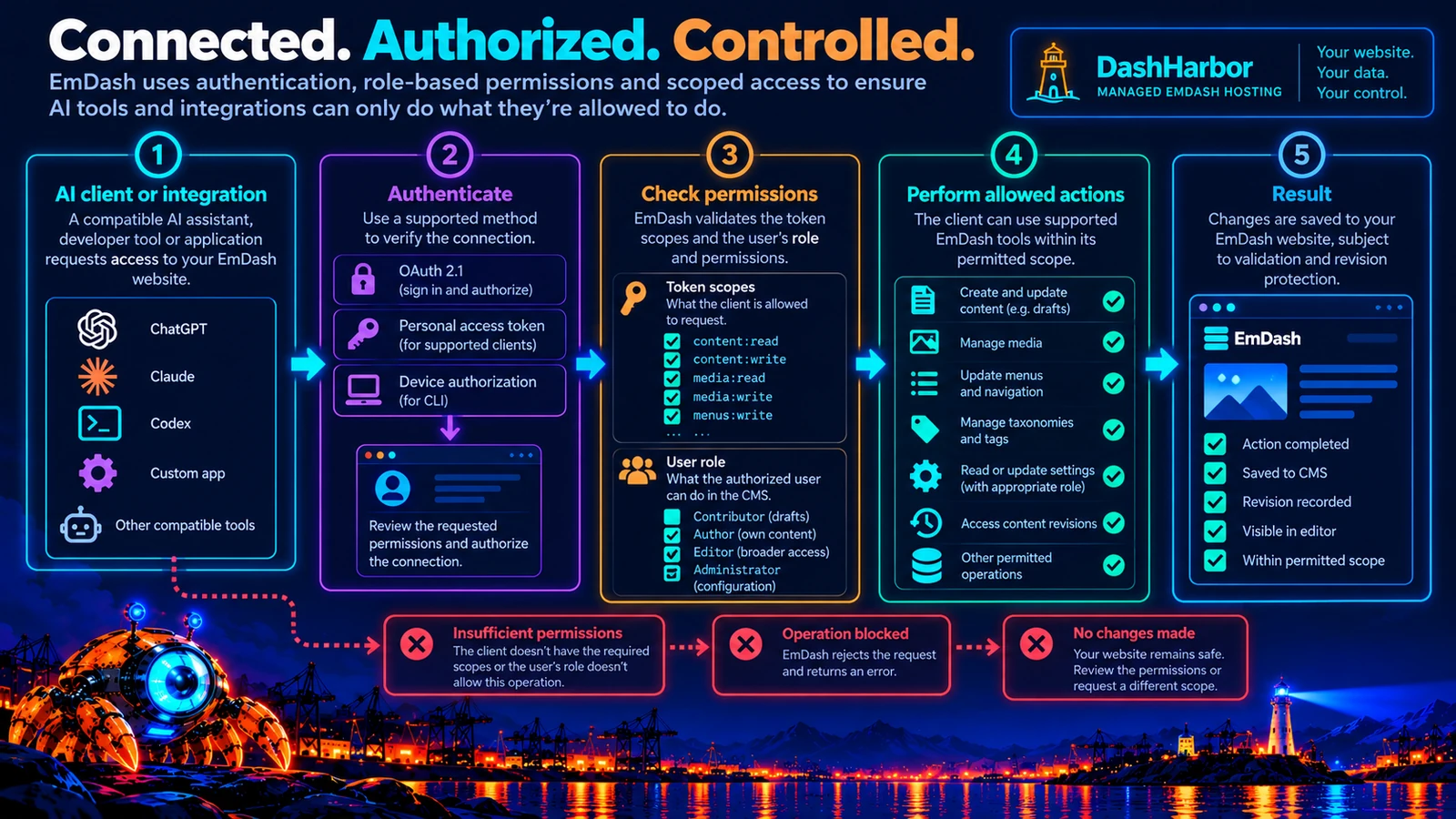
Authentication: who gets to connect?
This is the part that matters most when you're giving software access to your website.
An MCP server shouldn't simply accept requests from anybody who happens to know its address.
EmDash requires bearer-token authentication for its site MCP endpoint.
Its documented authentication methods include OAuth 2.1, personal access tokens and device authorization for compatible command-line clients.
With OAuth, a user can review the access a client requests and authorize a suitable connection.
Personal access tokens support other client and automation scenarios, with their own security and management responsibilities.
Crucially, the connection's permissions are not determined by the token alone.
EmDash also checks the associated user's role and relevant content ownership rules.
This means a tool cannot obtain administrator authority just because its developer requested an impressive list of scopes.
What are scopes?
Scopes describe categories of access that a token is permitted to request.
For example:
content:readallows supported content-reading operations, subject to the user's permissions.content:writepermits supported content changes.media:readandmedia:writecontrol corresponding media operations.schema:readandschema:writecover content-model operations.settings:readandsettings:managecover supported settings operations.
EmDash also defines permissions for other capabilities, including site-transfer operations.
The sensible rule is to grant a connection only what it actually needs.
A research assistant that needs to inspect articles shouldn't automatically have permission to delete media, change the website's content model or initiate site transfers.
That isn't being overly cautious.
It's the software equivalent of not handing everyone in the office the keys to every room.
How permissions work in practice
EmDash uses a role-based permission model alongside token scopes.
Role or access level | Typical capability | Practical consideration |
|---|---|---|
Contributor | Create drafts and edit permitted draft content. | Useful for preparing content without publishing authority. |
Author | Edit and publish owned content, subject to permissions. | Suitable for workflows involving a particular author's material. |
Editor | Manage broader editorial resources and other users' content. | More powerful; use only where the workflow requires it. |
Administrator | Access sensitive configuration and supported schema or site-transfer operations. | Reserve for trusted administration, not routine content drafting. |
Read-only scoped connection | Inspect permitted content without receiving write scopes. | A useful starting point for discovery, review and research tasks. |
The effective permissions depend on the user's role, token scopes and the particular resource.
A token with a powerful-looking scope is still limited by the permissions of the user who authorized it.
Conversely, an administrator connecting a tool with broad scopes may be granting substantially more access than a simple drafting task requires.
Review the requested permissions carefully.
And remove connections that are no longer needed.
What happens when an AI tool makes a mistake?
Let's assume you connect an AI assistant to your website.
Everything works beautifully for the first few tasks.
Then one day it misunderstands an instruction.
You ask it to update an article's introduction, and it decides the entire article needs rewriting.
That would be irritating.
Depending on the permitted operation and the change made, it could also be serious.
This is why good AI integration needs more than authentication.
Start with drafts
If an assistant is helping with editorial work, give it the ability to create or update drafts where appropriate.
Review important changes before publishing.
It's much easier to correct a draft than explain why the live homepage suddenly describes your plumbing company as a luxury submarine manufacturer.
Use the smallest appropriate permissions
If a task doesn't require publishing, don't give it publishing authority.
If it doesn't require changing schemas, don't provide schema-management permissions.
This limits the consequences of misunderstandings and mistakes.
Respect existing revisions and editing locks
EmDash includes revision-aware content operations and edit-lock behavior.
Its MCP content-writing tools use revision preconditions for relevant changes.
That helps prevent an assistant from unknowingly overwriting content that another editor has changed since the assistant last read it.
An incompatible or stale revision can be rejected rather than silently replacing newer work.
This is particularly important when people and automated tools are working on the same website.
Keep managed recovery separate
Native content revisions can help restore supported earlier content.
They are not a substitute for whole-site backups or controlled infrastructure recovery.
DashHarbor's broader managed protections should remain separate from the permissions granted to an ordinary AI content assistant.
The aim is not to eliminate every possible mistake.
It's to make mistakes less likely, limit their impact and provide appropriate ways to recover.
Using EmDash MCP with DashHarbor
At this point, you might reasonably ask:
"If EmDash already supports all this, why isn't it simply available to every DashHarbor customer?"
The answer comes down to managed hosting.
DashHarbor runs EmDash websites within a controlled Cloudflare hosting environment.
Customer sites need protected editor access, appropriate tenant isolation and reliable managed operations.
EmDash itself supports several authentication methods, including a Cloudflare Access integration.
But Cloudflare Access introduces an additional authentication layer.
That matters because a normal EmDash MCP connection expects appropriate OAuth or bearer-token authentication.
Cloudflare Access can separately protect the paths used by the editor and API.
Connect AI assistants and developer tools to your EmDash website through native MCP, REST API and CLI interfaces. DashHarbor brings these capabilities into a managed hosting environment.
Use the same EmDash content and permissions whether you work in the native editor, through an MCP client or with the REST API and CLI.
Every connection respects your website's permissions and the access granted to its credential.
With the appropriate permissions, connected tools can:
- Read content collections and retrieve website content.
- Create and update drafts through native EmDash operations.
- Connect AI applications through the MCP Streamable HTTP transport.
- Authenticate managed MCP connections with scoped personal access tokens.
- Use read-only access or grant write permissions for specific tasks.
- Limit credentials to the intended website and permitted operations.
- Publish changes when the credential has publishing permission.
- Use revision-aware updates to protect existing content.
- Revoke credentials whenever you no longer need an integration.
- Keep hosting controls and the native EmDash editor under your control.
EmDash supplies the native integration interfaces; DashHarbor provides the managed hosting environment around them.
Use compatible AI assistants, MCP clients and developer tools without replacing the EmDash editor or handing over hosting infrastructure access.
Your website remains under your control: choose which tools connect, what they can access and whether they can publish.
Native EmDash MCP, REST API and CLI
EmDash provides the editor, content models and native integration interfaces used by connected applications and developer workflows.
The MCP server gives compatible AI assistants a standard way to read and work with website content over Streamable HTTP.
The REST API supports direct integrations, while the EmDash CLI provides command-line access for development and automation.
DashHarbor supplies the managed environment, including provisioning, hosting configuration, protected editor access and operational management.
Together, these interfaces let you connect AI agents, MCP clients, automation tools and developer workflows to your managed EmDash website.
Authenticate with a scoped personal access token and grant only the permissions the connected tool needs.
Use read access to retrieve content, write permissions to create or update drafts, and publishing permission when you want an integration to publish changes.
Revision-aware operations help keep connected edits consistent with the native EmDash content workflow.
EmDash integrations use different authentication patterns, including personal access tokens and OAuth where supported by the connected service and configuration.
The REST API and EmDash CLI provide additional routes for direct integrations, development and content automation.
To get started, choose a compatible MCP client or developer tool and configure it with the connection details for your website.
Give it the access needed for the task, then manage the resulting content through the native EmDash editor.
Connect your client, authenticate with your scoped credential, read website content and create a draft. Where publishing access is granted, the tool can publish through EmDash.
Not another CMS, editor or hosting dashboard.
Just a direct way to work with your website using the tools you already prefer.
How this relates to DashHarbor AI
Native MCP and API access shouldn't be confused with DashHarbor building a separate AI assistant.
They're different things.
MCP allows compatible external AI tools to interact with supported website capabilities.
The REST API allows applications to integrate with EmDash.
The CLI gives developers another way to work with supported operations.
DashHarbor AI is our guided website assistant.
It brings guided tasks, reviewed changes and managed safeguards into the website experience.
But there's no reason to require every customer to use a DashHarbor-branded AI assistant if they already have a compatible tool they prefer.
The native interfaces should provide the foundation. DashHarbor's additional services should earn their place on top of it.
That also helps avoid building an entirely new editor or duplicating work upstream.
The best platform features often make existing technology easier to use rather than replacing it.
Should everyone connect AI to their website?
No.
And that's perfectly fine.
For many website owners, the native editor is all they need.
If you publish a handful of pages a year, adding an MCP connection might save very little time.
There's no prize for automating something that was already easy.
But if you regularly produce content, manage multiple collections, work with developers or have repetitive editorial tasks, the additional interfaces become more interesting.
They can also be useful for people building workflows that connect their website with other business systems.
The key is to start with a clear problem.
Maybe that's preparing drafts.
Maybe it's inspecting existing content before an SEO review.
Maybe it's coordinating articles written outside the CMS.
Or maybe you're a developer who simply wants an API that doesn't require reverse-engineering an admin dashboard.
Start with the task.
Then choose the interface that makes the task simpler.
Frequently asked questions
Does EmDash have a built-in MCP server?
Yes. EmDash includes a native MCP server at /_emdash/api/mcp, enabled by default unless disabled in configuration. It exposes supported CMS operations to compatible, authenticated clients. Available operations depend on your EmDash version, site configuration and the permissions granted to the connection.
Can I connect ChatGPT or Claude to my EmDash website?
Connect ChatGPT, Claude and other compatible MCP clients to your DashHarbor-managed EmDash website through its native MCP endpoint. Configure the connection using the authentication method supported by your client, then grant the permissions required for the task. Your assistant can read content, create and update drafts, and publish changes when it has publishing permission.
Is MCP different from the EmDash REST API?
Yes. MCP is designed for compatible AI clients that discover and use structured tools. REST provides conventional HTTP endpoints for programmed integrations. Both can interact with supported EmDash resources, but they suit different workflows. EmDash also provides a separate CLI for terminal-based operations.
Can an AI assistant publish or delete website content?
An authorized client may perform supported write operations if its token scopes, associated user role and content permissions allow them. EmDash enforces those limits on the server. For routine AI-assisted writing, creating drafts with limited permissions and reviewing changes before publishing is generally a safer starting point.
Does connecting an AI tool give it access to my Cloudflare account?
No. An ordinary EmDash MCP connection concerns the permissions exposed by that EmDash installation. It does not automatically grant access to the underlying Cloudflare account, Workers configuration, DNS or other unrelated infrastructure. Any separate infrastructure integration would require its own authorization and permissions.
Does a free website include MCP and API access?
Your free website includes native editing and publishing. EmDash MCP, REST API and CLI are native interfaces for connecting compatible AI assistants and developer tools to your site. DashHarbor supports managed MCP connections using scoped personal access tokens over Streamable HTTP, with read access and explicitly granted write permissions. Available operations depend on the connected client and its assigned permissions.
Your website should work with your tools
EmDash is designed for more than clicking around a content editor.
Its native MCP server, REST API and CLI create useful opportunities for integrating website management with the software you already use.
An AI assistant can help prepare drafts.
A developer can build a custom integration.
A terminal-based workflow can handle supported administrative tasks.
And the normal EmDash editor remains available whenever you simply want to make changes yourself.
DashHarbor brings these native capabilities into a managed hosting environment, with authentication, permissions and operational safeguards built into the service.
Use MCP for AI-assisted content workflows, the REST API for direct integrations and the EmDash CLI for command-line tasks and automation.
Use the tools that suit you. Keep control of your website.
Start with a real EmDash site
Create your free website on DashHarbor, choose a supported design and publish using the native EmDash editor. Connect compatible tools when you are ready to automate content workflows.
For MCP access, use a compatible Streamable HTTP client with a scoped personal access token. Developers can also work with the native REST API and CLI.
Your website comes first. The clever integrations can follow.
Explore related features
- DashHarbor AI — AI help with managed website safeguards.
- EmDash AI Builder — Create an editable EmDash website from a brief.
- EmDash Plugins — Extend EmDash with supported plugin capabilities.
- EmDash Site History — Understand significant website changes and managed operations.