Your website, looked after
EmDash DNS
Coming soon
Understand DNS records, hostname verification and HTTPS for your EmDash website while keeping existing business email working.
A complete guide from DashHarbor · EmDash, explained.
Your domain should find your website. Not become a weekend project.
DNS is one of those things that works beautifully until somebody asks you to change a record.
Suddenly you're staring at a collection of abbreviations, unfamiliar settings and warnings about breaking your email. All because you wanted your website to have a proper address.
DashHarbor's paid custom-domain hosting is designed to make the hosting side of connecting a domain to EmDash more manageable, with clear DNS instructions, hostname verification, Cloudflare routing and HTTPS certificate handling.
You keep control of your domain. DashHarbor handles the hosting infrastructure needed to serve your EmDash website through it.
No mystery IP addresses copied from random tutorials. No need to become a DNS administrator just to publish a homepage.

What is DNS, and why does your website need it?
DNS stands for Domain Name System.
Its job is to help computers find the services associated with human-readable domain names.
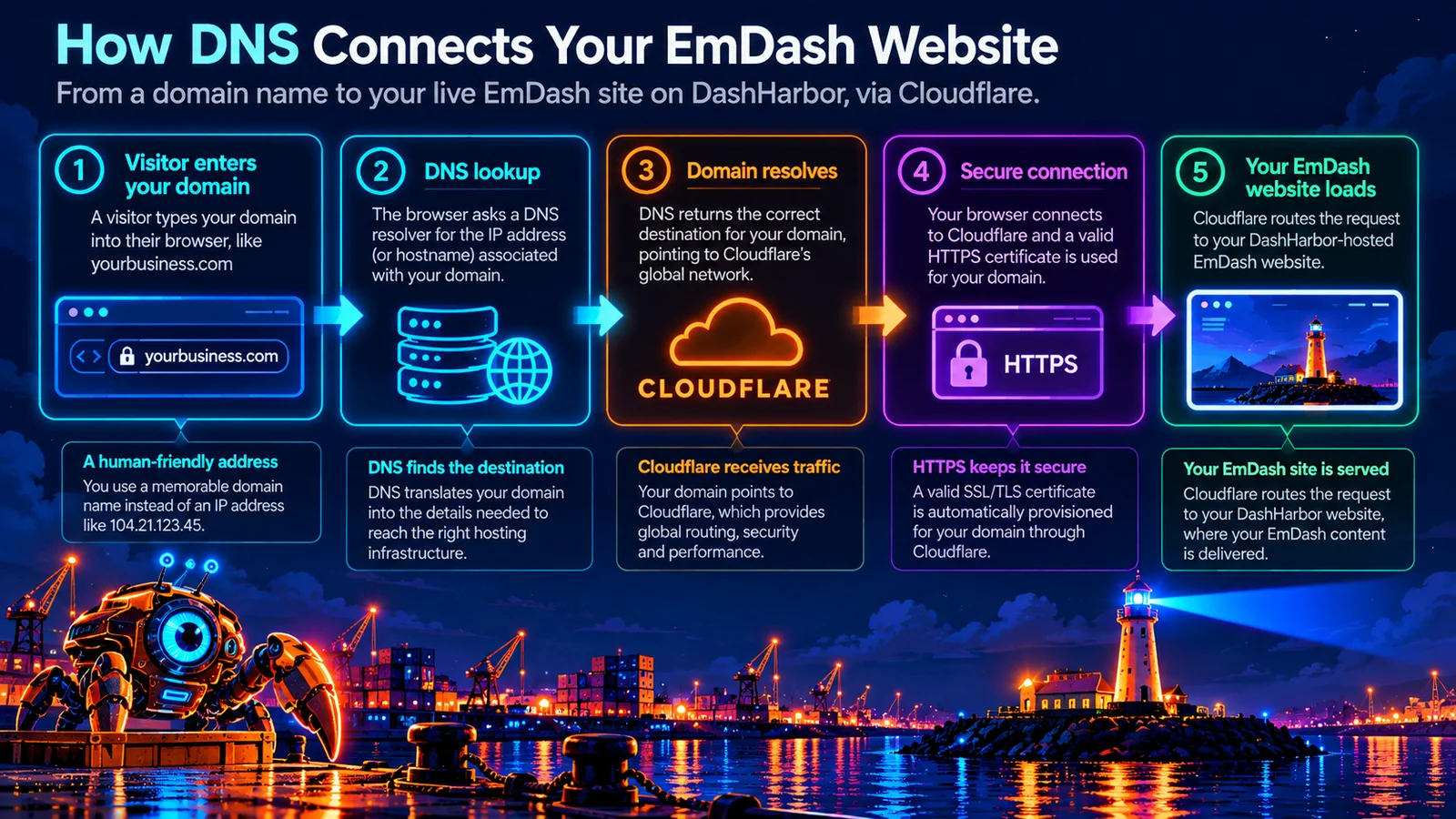
When somebody enters yourbusiness.com into their browser, the browser needs to discover where to connect. DNS provides the information needed to find the appropriate destination.
Without DNS, we'd spend rather more time remembering IP addresses and considerably less time doing anything useful.
For an EmDash website hosted on DashHarbor, DNS becomes particularly relevant when you want to use a domain you already own.
For example, your website might start at:
yourbusiness.getdashharbor.com
Later, you might want visitors to use:
www.yourbusiness.com
The content doesn't need to be rebuilt. Your EmDash website can remain on the same managed hosting infrastructure.
What changes is how visitors reach it. DNS plays an important role in making that connection work.
Why DNS matters to your EmDash website
DNS does considerably more than point a web address at a server.
A well-configured domain helps ensure that the correct website appears, HTTPS works and other services attached to your domain continue operating.
Your website reaches the right destination
A domain can have multiple records associated with different services. The records used for your website need to direct visitors toward the correct hosting infrastructure.
Incorrect records can send visitors somewhere else, produce connection errors or prevent the site from loading.
HTTPS works with your domain
Your custom address needs a valid HTTPS certificate. That involves proving control of the hostname and completing the required certificate validation.
Cloudflare handles certificate provisioning within the managed custom-hostname infrastructure, but the hostname still needs to be configured correctly. An incorrect DNS configuration can interfere with that process.
You retain control of your domain
Your domain registration and your website hosting are separate things.
You can keep your domain with your preferred registrar while using DashHarbor to host your EmDash website. There is no need to transfer domain ownership just to change where your website is served.
Your email can stay where it is
Your website and business email might use the same domain name without using the same service provider.
For example, your website might run on DashHarbor while your email runs on Microsoft 365 or Google Workspace. There's nothing unusual about that.
The important thing is knowing which DNS records affect which services, so changing the website doesn't accidentally interrupt your email.
How DashHarbor handles DNS for EmDash websites
DashHarbor's paid-domain connection approach builds on Cloudflare's custom-hostname infrastructure.
The idea is straightforward: you control your domain and its DNS provider, while DashHarbor manages the hosting-side connection to your EmDash website.
There are several distinct parts to that process.
1. Identify the domain
Choose the hostname you want visitors to use, such as www.yourbusiness.com. The hostname must be one you control or have permission to configure.
2. Provide the required DNS instructions
The DNS records must point to the correct hosting destination.
The exact record types and values depend on the hostname and supported configuration. A www subdomain may use a CNAME record, while an apex domain can require a different arrangement.
The important part is using the instructions supplied for your actual website, rather than guessing.
3. Verify domain ownership
Before a custom hostname can be activated, Cloudflare needs to establish that you have authority to use it. This may involve DNS-based verification or another supported method.
Verification protects against somebody attaching a domain they don't control.
4. Activate HTTPS
Cloudflare must also complete certificate validation, issuance and deployment. Hostname ownership and HTTPS certificate readiness are separate checks.
A domain isn't fully ready merely because one of them has succeeded.
5. Route visitors to the correct EmDash site
Once the hostname is validated, its certificate is active and DNS points to the expected target, Cloudflare can serve requests through the appropriate DashHarbor installation.
Your EmDash pages, media and content remain on the managed website.
6. Confirm the public address
The website needs to recognize its intended public URL. That includes checking links, canonical metadata, sitemap references and the relationship between the original DashHarbor subdomain and the custom domain.
A working connection is more than getting the homepage to load once. It's ensuring the domain works consistently across the website.
DNS records explained without the headache
DNS records are instructions associated with your domain.
Different record types perform different jobs, and understanding a handful of them is enough to avoid many common configuration mistakes.
Record | What it does | Typical use |
|---|---|---|
A | Points a hostname to an IPv4 address | Website or service hosting |
AAAA | Points a hostname to an IPv6 address | IPv6-enabled services |
CNAME | Makes a hostname an alias of another hostname | Connecting a |
TXT | Stores text used for verification and policies | Domain ownership, SPF, DKIM and DMARC |
MX | Identifies servers that receive email | Business email delivery |
CAA | Restricts which certificate authorities may issue certificates | Certificate security |
These records aren't interchangeable.
An MX record doesn't tell browsers where your homepage lives. A CNAME record doesn't automatically configure your email.
And a TXT record containing a verification token isn't the same thing as moving your website.
The record values matter, but so does putting them in the correct place.
A and AAAA records
These records associate hostnames with IP addresses. They are common throughout the internet, although some managed hosting configurations use hostname-based targets rather than asking customers to enter an IP address.
CNAME records
A CNAME makes one hostname an alias of another.
It's commonly used when connecting subdomains such as www.yourbusiness.com to a managed hosting service.
There are additional rules around CNAME records at a domain's root, so the appropriate configuration depends on the DNS provider and hosting setup.
TXT records
TXT records have several uses. They can prove domain ownership, publish email authentication policies or provide other verification information.
A TXT record isn't necessarily something visitors will ever notice. That doesn't mean it isn't important.
MX records
MX records tell sending mail servers where to deliver incoming email for your domain.
If you already use a business email provider, these records deserve particular care when updating DNS.
CAA records
CAA records can limit which certificate authorities are permitted to issue certificates for a domain.
They're useful for security, but restrictive or incorrect CAA settings can also prevent a legitimate HTTPS certificate from being issued.
DNS is full of little details like that. Most days, nobody notices them. On the wrong day, everybody does.
Keep your business email working
Here's an important point: connecting a website to new hosting does not inherently require moving your email.
Suppose your domain is yourbusiness.com.
You might have:
- A website hosted through DashHarbor.
- Email delivered through Microsoft 365.
- Domain registration with an entirely different company.
That arrangement can work perfectly well.
The problem comes when someone changes DNS records without understanding what the existing records do.
MX: Where incoming email goes
MX records identify the mail servers responsible for receiving messages. Changing them can affect incoming email delivery.
If you're only moving your website, there's generally no reason to replace your MX records.
SPF: Which services can send email
SPF is an email authentication policy published using a TXT record.
It helps receiving systems assess which servers are authorized to send mail on behalf of your domain.
DKIM: Verifying signed messages
DKIM uses cryptographic signatures to help receiving systems verify that a message was signed by a service authorized for the domain. Its public keys are published through DNS.
DMARC: What receivers should do with failed authentication
DMARC builds on SPF and DKIM, allowing domain owners to publish an authentication policy and receive reports.
Together, these records help protect email identity and improve the handling of legitimate and suspicious messages.
They're separate concerns from the DNS records that direct web traffic.
The mistake to avoid
Changing a website-specific record is one thing.
Replacing your domain's nameservers is a much bigger operation because it can change which DNS provider is authoritative for the entire domain.
If existing email records aren't carried over correctly, email can stop working.
That's why our approach to custom domains emphasizes targeted DNS instructions instead of telling everyone to transfer their entire DNS configuration unnecessarily.
Your website needs an address. Your email needs to keep working. Both are reasonable expectations.
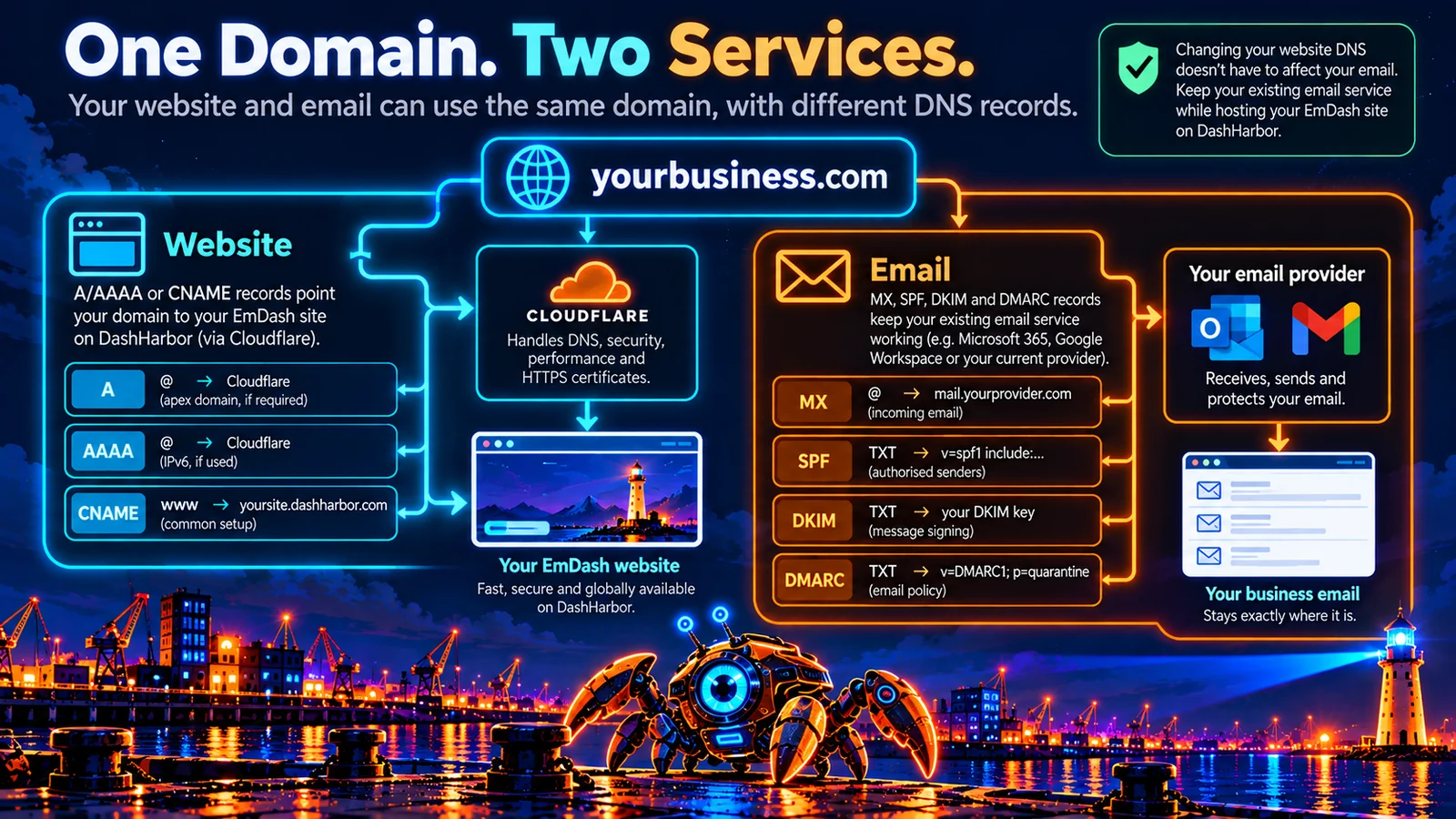
DNS values in these illustrations are examples, not connection instructions. Use the records supplied for your own website.
What DashHarbor manages, and what you manage
Managed hosting doesn't mean DashHarbor owns your domain or replaces every service connected to it.
The responsibilities should be clear.
Responsibility | Who handles it |
|---|---|
Domain registration and renewal | You and your chosen registrar |
Access to your authoritative DNS records | You or your DNS provider |
Adding the supplied domain connection records | You or an authorized DNS administrator |
Custom-hostname onboarding and verification | DashHarbor and Cloudflare, with required ownership proof from you |
HTTPS certificate provisioning for the hosted website | Cloudflare through the managed hosting configuration |
Routing the connected hostname to your EmDash website | DashHarbor |
Existing email delivery and authentication records | You and your email provider |
EmDash hosting, application infrastructure and supported site configuration | DashHarbor |
The aim is not to build another domain registrar or ask you to replace a DNS service that already works.
It's to make the connection between your domain and your hosted EmDash website easier to understand and maintain.
DashHarbor DNS assistance is part of the paid custom-domain hosting proposition. A separate, full DNS-record management dashboard is not included in the current service.
What happens when you change DNS?
DNS changes don't always appear everywhere immediately.
That's because DNS resolvers cache information rather than requesting every record from its authoritative source on every lookup.
A DNS record includes a value called its TTL, or Time to Live.
The TTL tells caching resolvers how long they may retain the record before requesting updated information.
If an old DNS answer is still cached, some visitors may continue reaching the previous destination while others already see the new one.
This is often described as DNS propagation, although it's largely about caches expiring and new answers being retrieved.
How long does DNS propagation take?
Sometimes changes become visible within minutes. Other times, they take longer because of existing cached records, TTL settings or provider-specific behavior.
There isn't a universal countdown clock that guarantees every DNS change will finish at the same moment.
And DNS isn't always the only thing you're waiting for.
Custom-hostname verification and HTTPS certificate activation can have their own independent completion steps.
A DNS lookup returning the expected answer is encouraging. It isn't necessarily proof that the entire website connection is ready.
Common DNS problems and what they mean
Most domain connection problems fall into a few recognizable categories.
The domain points somewhere else
The hostname may still reference an old hosting provider or an incorrect target. The solution starts with checking the actual DNS answer against the destination supplied for the website.
A conflicting record exists
Some DNS configurations don't allow certain record types to coexist at the same hostname.
An existing A record, for example, may need to be reviewed before a CNAME can be used at that name. Simply adding another record isn't always the answer.
Domain verification is pending
The required ownership proof may be missing, incorrect or not yet visible to the validation system. This doesn't necessarily mean the website application itself is broken.
HTTPS isn't ready
The hostname may have been recognized while the certificate is still pending.
Certificate validation and hostname activation are separate processes, and both need to complete.
The website works, but email doesn't
This often points toward changes to MX records, email authentication settings or authoritative nameservers. Website DNS and email DNS should be investigated separately.
The old website still appears
A cached DNS answer, an unchanged record or a different DNS provider being authoritative may explain why visitors continue reaching the previous hosting destination.
Before changing more records, establish which DNS configuration is actually in use.
Randomly changing settings until something works is an unusually effective way to make troubleshooting harder.
DNS isn't domain registration
It's worth separating these two things.
Domain registration establishes your right to use a domain name, subject to the registrar's terms and renewal requirements.
DNS provides the records used to locate services associated with that domain.
Website hosting serves the actual pages and application.
DashHarbor provides managed EmDash hosting.
You can register your domain elsewhere, manage DNS with your chosen provider and connect the website through the supported custom-domain process.
There is no requirement to buy every service from the same company.
In fact, keeping domain ownership under your control is generally a sensible arrangement.
Frequently asked questions
Do I need to configure DNS to create a DashHarbor website?
No. A new DashHarbor website receives a working DashHarbor subdomain.
You can build and publish using the native EmDash editor without purchasing a domain or changing DNS records.
Custom DNS configuration becomes relevant when connecting an address you own.
Does DashHarbor register domain names?
No domain-registration service is included in the current hosting offer.
You can register and renew your domain through a registrar of your choice.
DashHarbor's domain-connection functionality concerns using that domain with your managed EmDash website.
Do I need to move my domain to Cloudflare?
Not necessarily.
Domain registration, authoritative DNS and Cloudflare-powered website hosting are different services.
The supported connection method determines which DNS changes are required. Transferring domain registration is not inherently necessary.
Will connecting my domain interrupt my business email?
It shouldn't require changing your existing email service.
However, the configuration must preserve the relevant MX and email authentication records, particularly if you change authoritative DNS providers.
Always review the existing records before making broader DNS changes.
How long will my new domain take to work?
That depends on DNS caching, hostname verification and HTTPS certificate activation.
Some changes appear quickly. Others take longer.
The connection should be considered ready when the DNS target is correct, hostname validation has succeeded and the HTTPS certificate is active.
Can I manage all my DNS records inside DashHarbor?
A full customer DNS management dashboard is not part of the current service.
DashHarbor's domain setup focuses on the DNS instructions, verification and hosting infrastructure needed to connect a custom domain to your EmDash website.
Other DNS records remain managed through your chosen DNS provider.
Your domain. Your website. Less DNS detective work.
You shouldn't need to become an infrastructure engineer to put a website online.
DashHarbor already gives you a working EmDash website on a managed subdomain, complete with HTTPS and the native content editor.
Paid hosting brings together domain verification, DNS guidance, secure routing and Cloudflare-managed HTTPS for your own domain. Custom-domain hosting is coming soon.
Paid subscriptions aren't open yet. Start building for free on your DashHarbor subdomain.
Explore all DashHarbor features
EmDash on Cloudflare · Managed EmDash hosting · EmDash backups